On the Email Administration page, you'll find a table listing all your email accounts.
Click the settings icon next to the email account for which you want to add an alias. This will open a dropdown menu.
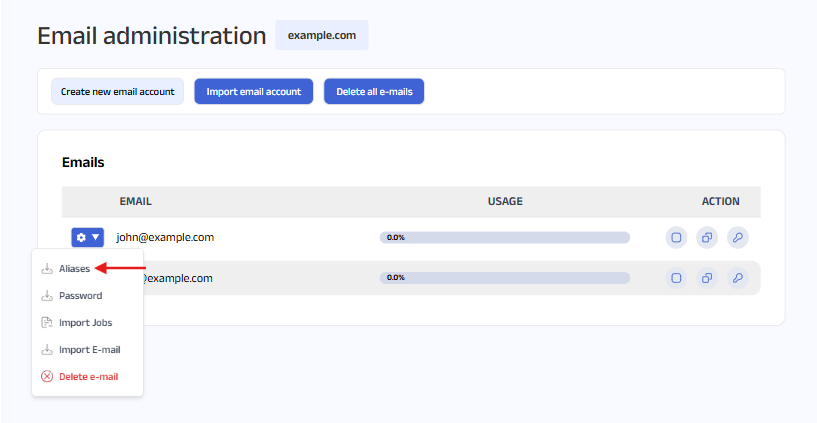
Select Aliases from the menu. You’ll be taken to the Email Aliases page.
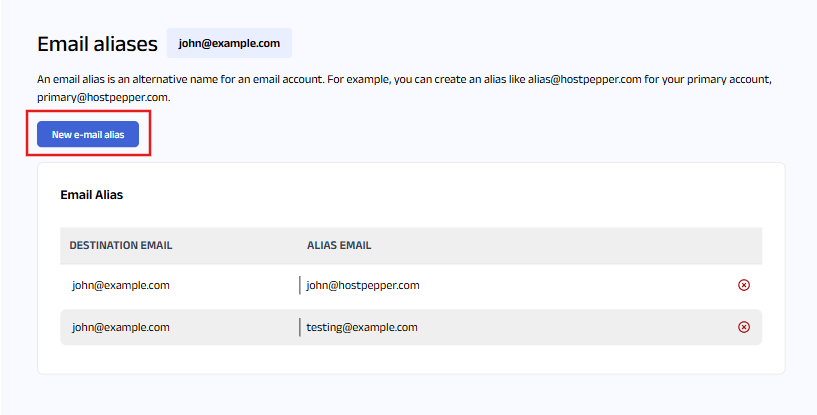
Click the “New E-mail Alias” button in the top-right corner. A pop-up will appear, prompting you to enter the alias name.
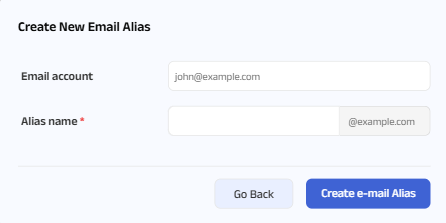
Enter the desired alias name, then click the “Create E-mail Alias” button in the bottom-right corner.
Your email alias will be created and displayed in the table below.


SAFE AND SECURE PAYMENT