On the Email Administration page, you'll find a table listing all your email accounts.
Click the settings icon next to the email account for which you want to change the password. This will open a dropdown menu.
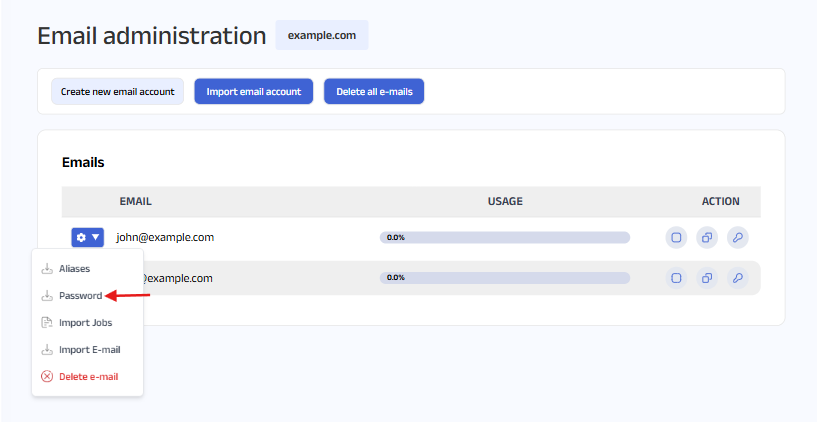
Select Password from the menu. You’ll be taken to the Change E-mail Password page.
Enter your new password in the form below, then click “Change Password.”
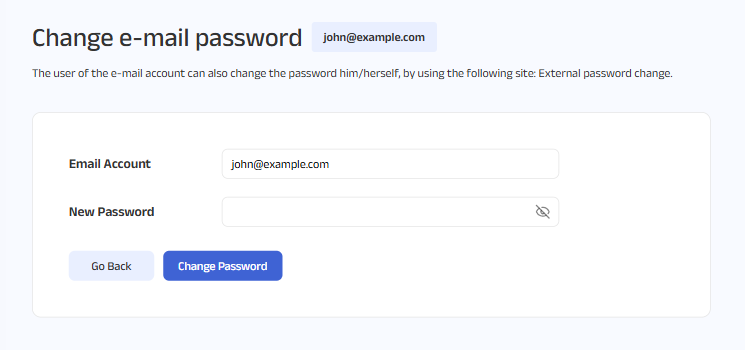
Your password will be changed successfully.
Note: Make sure you enter a strong password. A strong password should include at least 8 characters, a mix of uppercase and lowercase letters, numbers, and special symbols (e.g., !, @, #).


SAFE AND SECURE PAYMENT