If you prefer to use the new Outlook app, follow these steps:
Go to Accounts > Your Accounts, then click Add Account on the left panel.
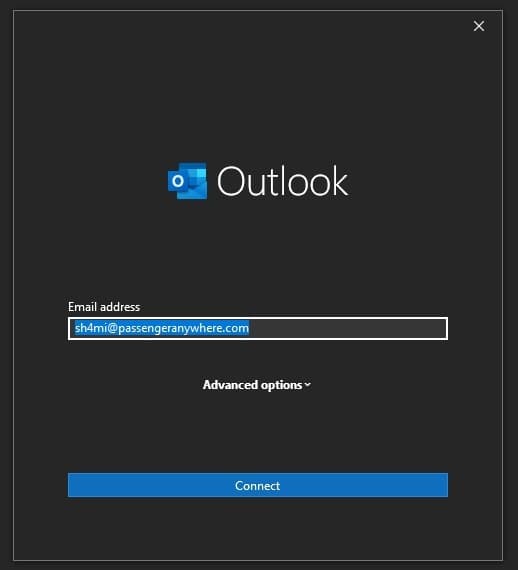
Enter your email address and click Connect.
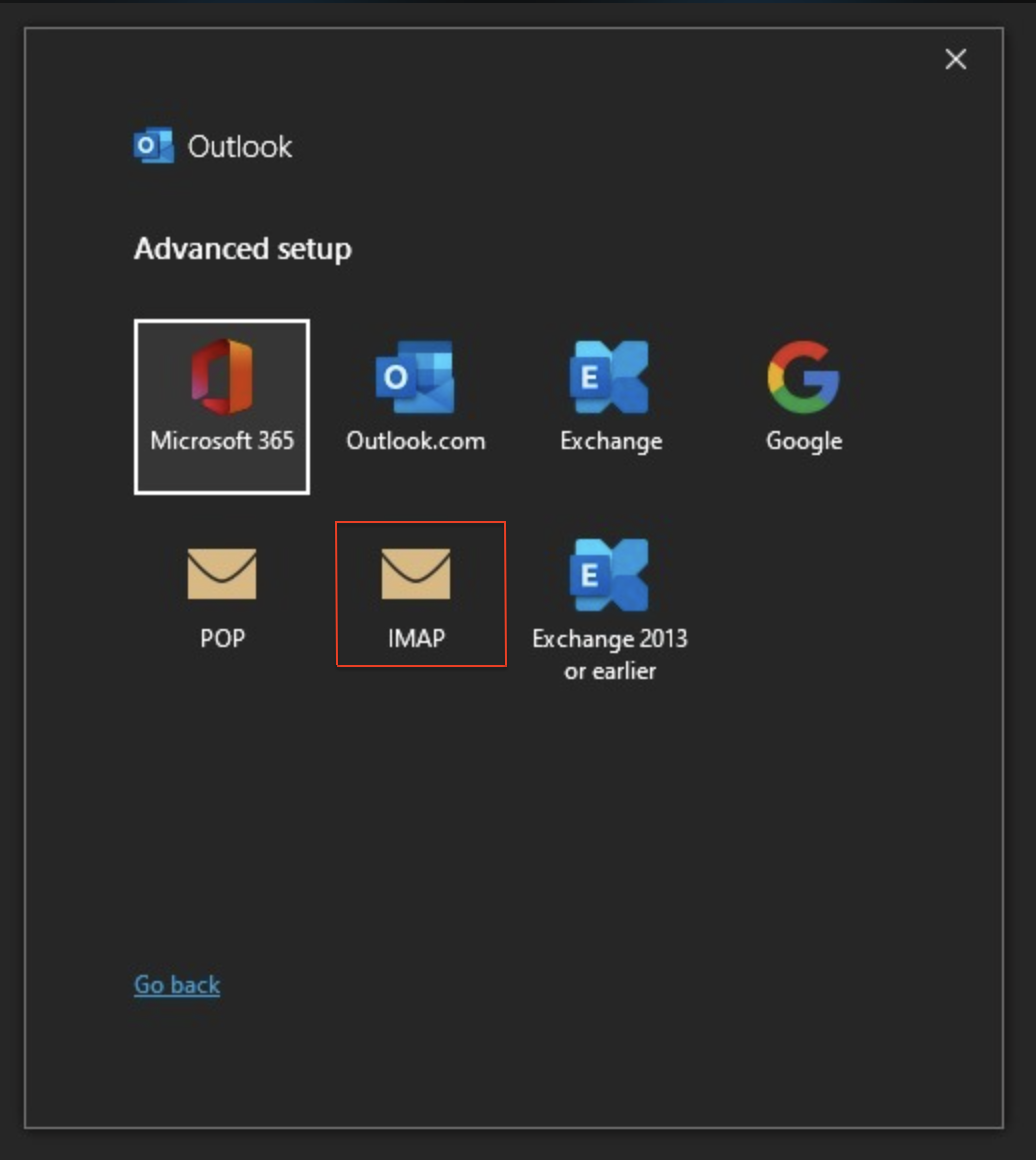
Select IMAP from the list of providers.
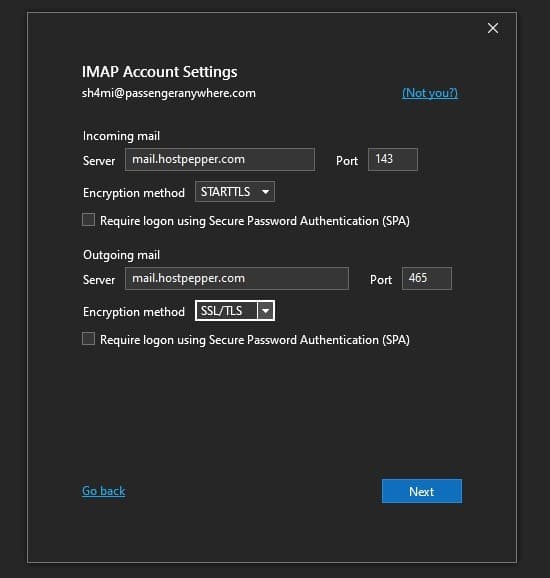
Incoming Mail Server Settings:
Enter the server name (e.g., mail.hostpepper.com) and select STARTTLS as the encryption method.
Set the port number to 143.
Outgoing Mail Server Settings:
Enter the server name (e.g., mail.hostpepper.com) and select SSL/TLS as the encryption method.
Set the port number to 465.
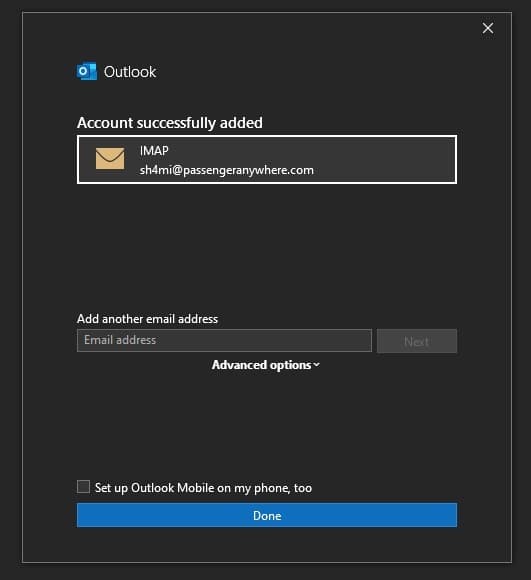
Click Next to finish the setup process.


SAFE AND SECURE PAYMENT