Follow the steps below to set up your HostPepper email account in the built-in Mail app on your iPhone or iPad.
Open Settings on your iPhone or iPad.
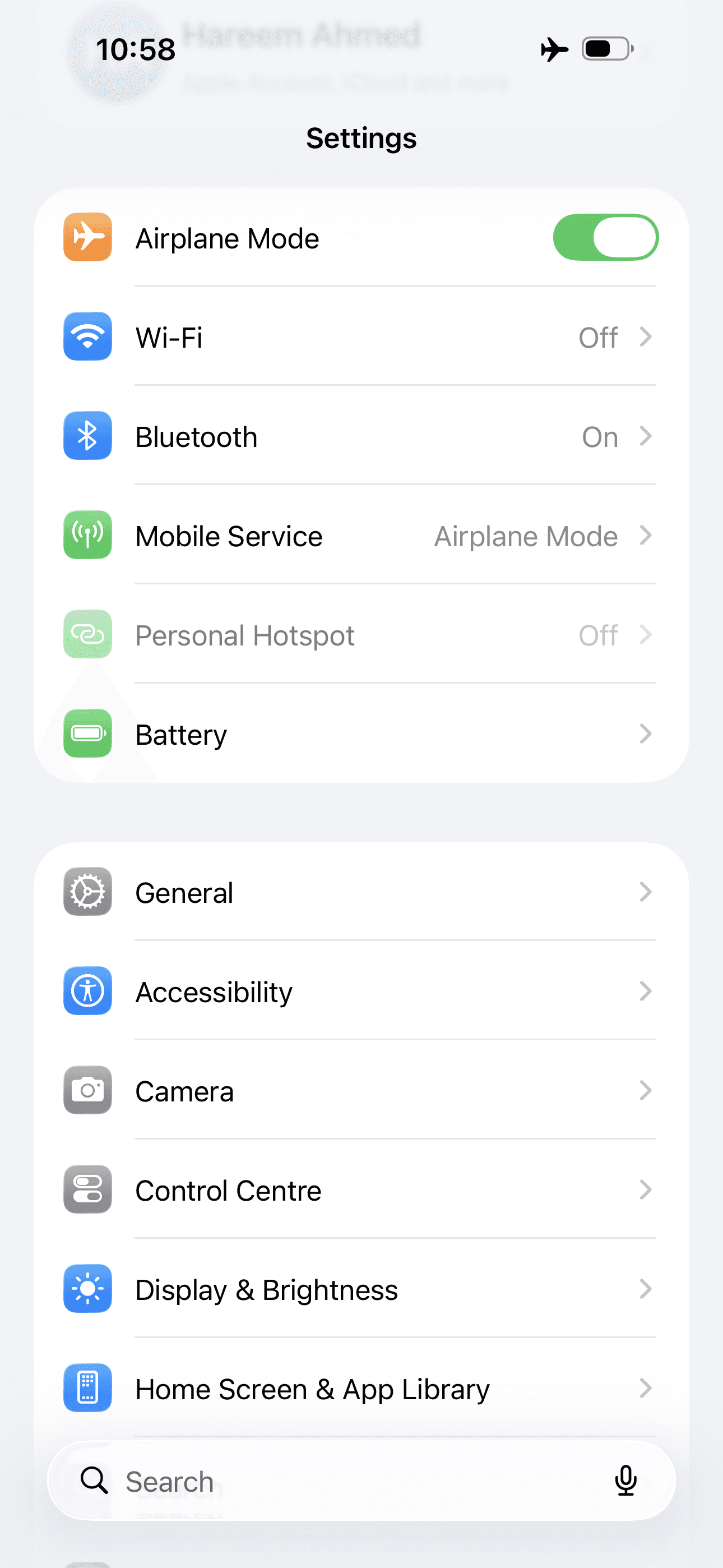
Use Settings search to open Mail, then tap Mail Accounts.
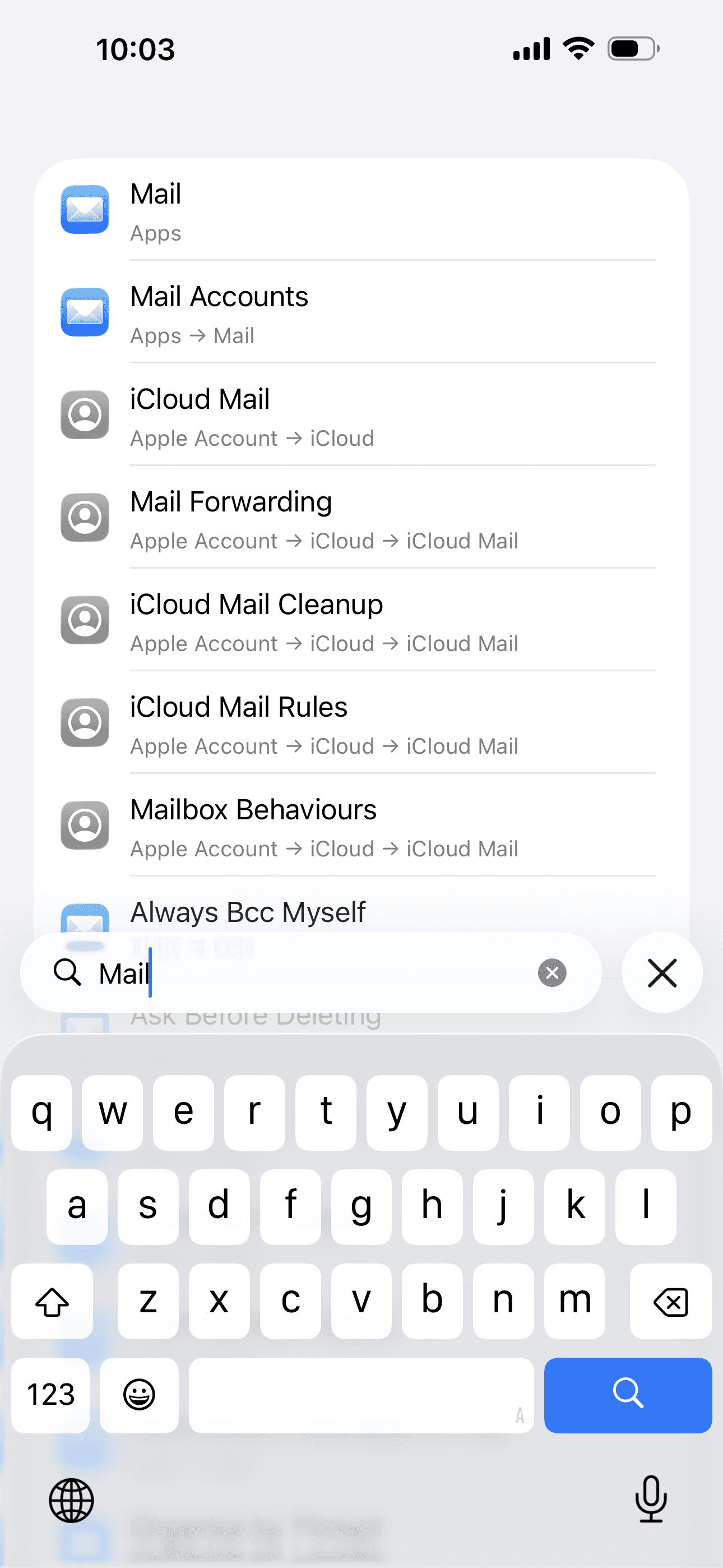
Click on Add Account to add a new account.
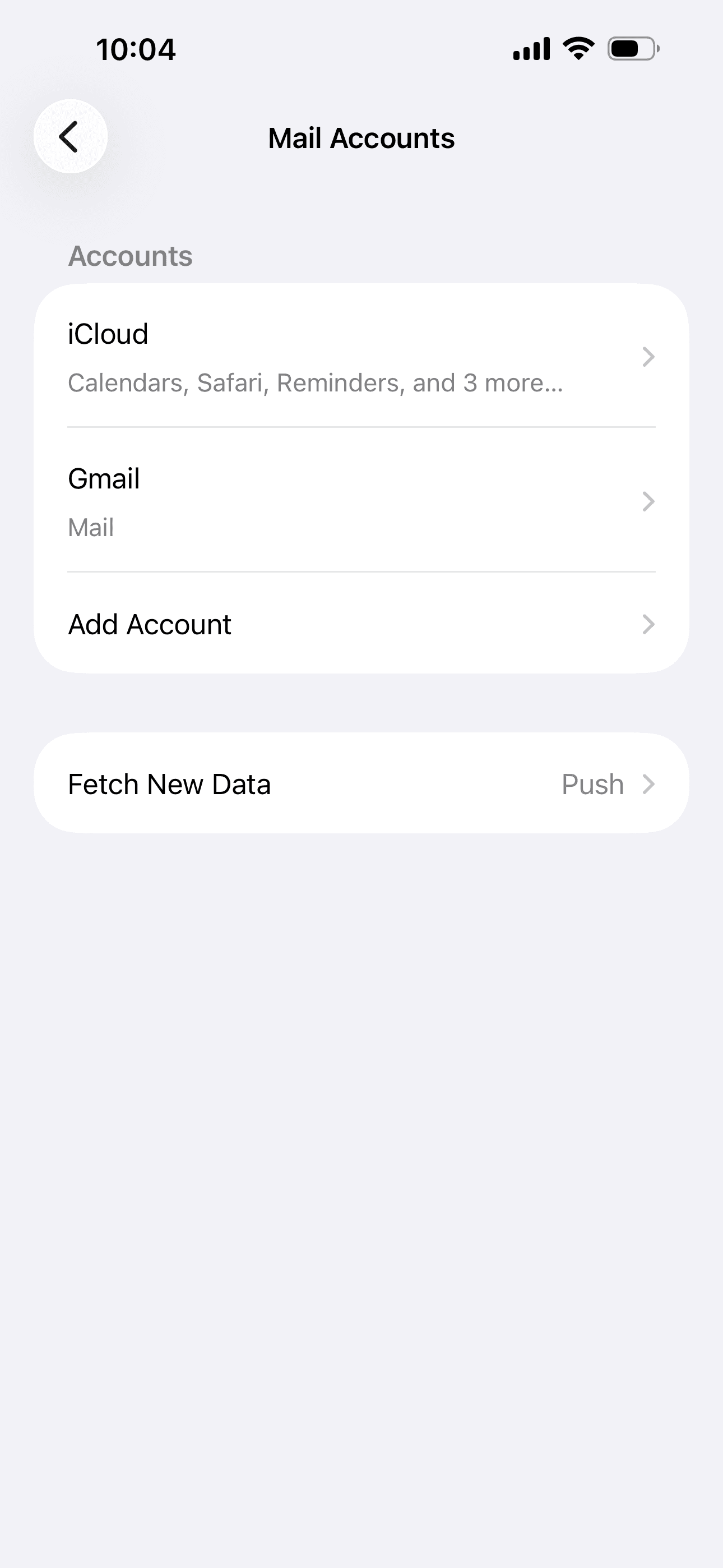
Click on Choose from the list to add new account.
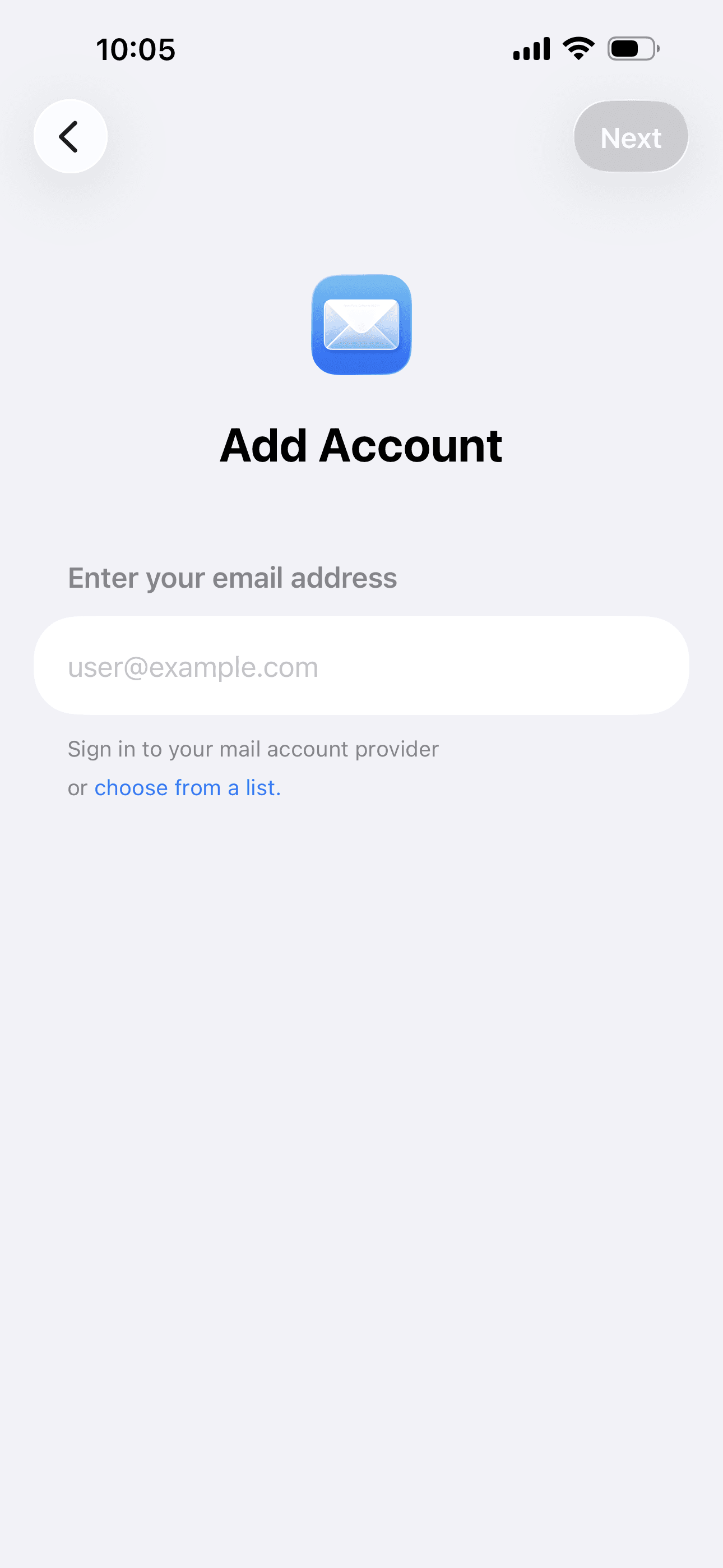
Select Add Other Account, Then select Mail Account.
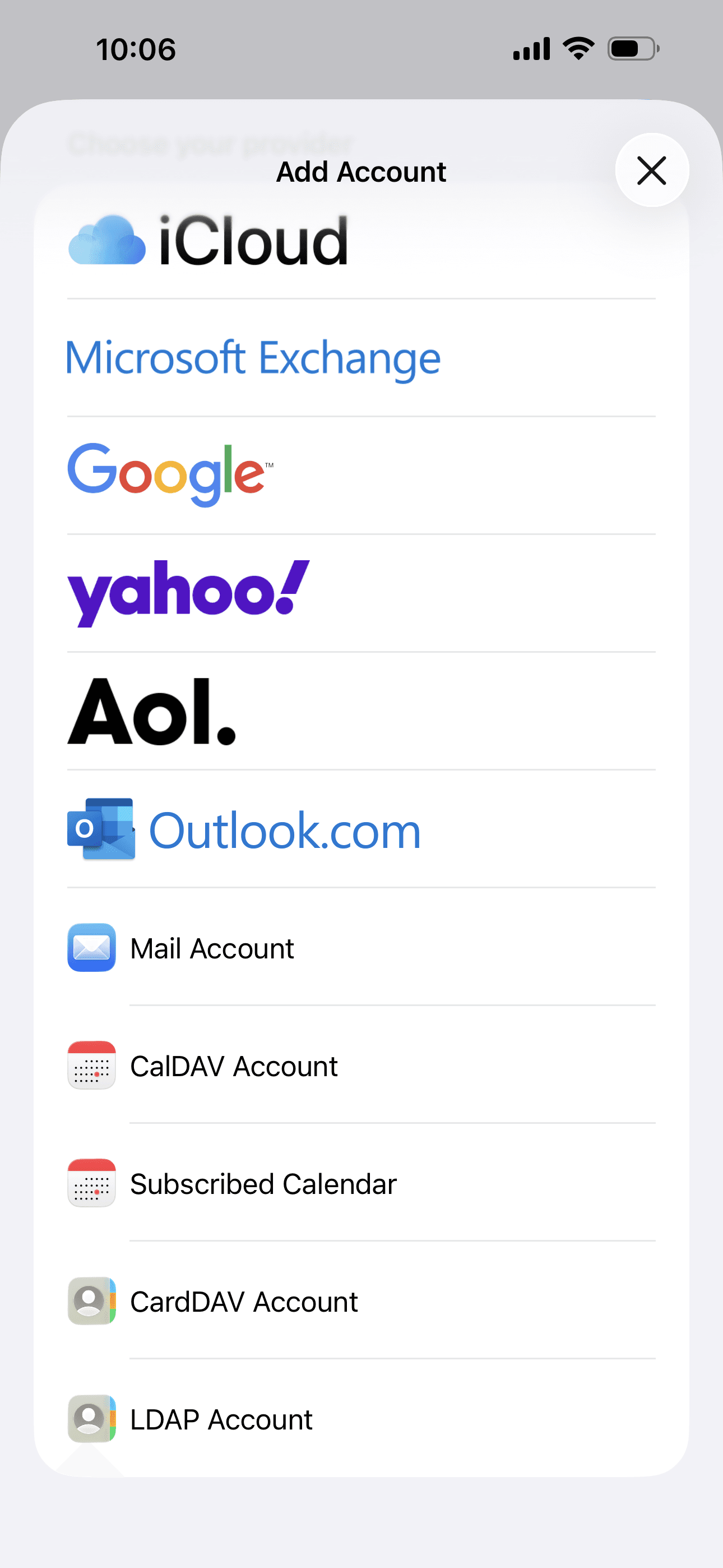
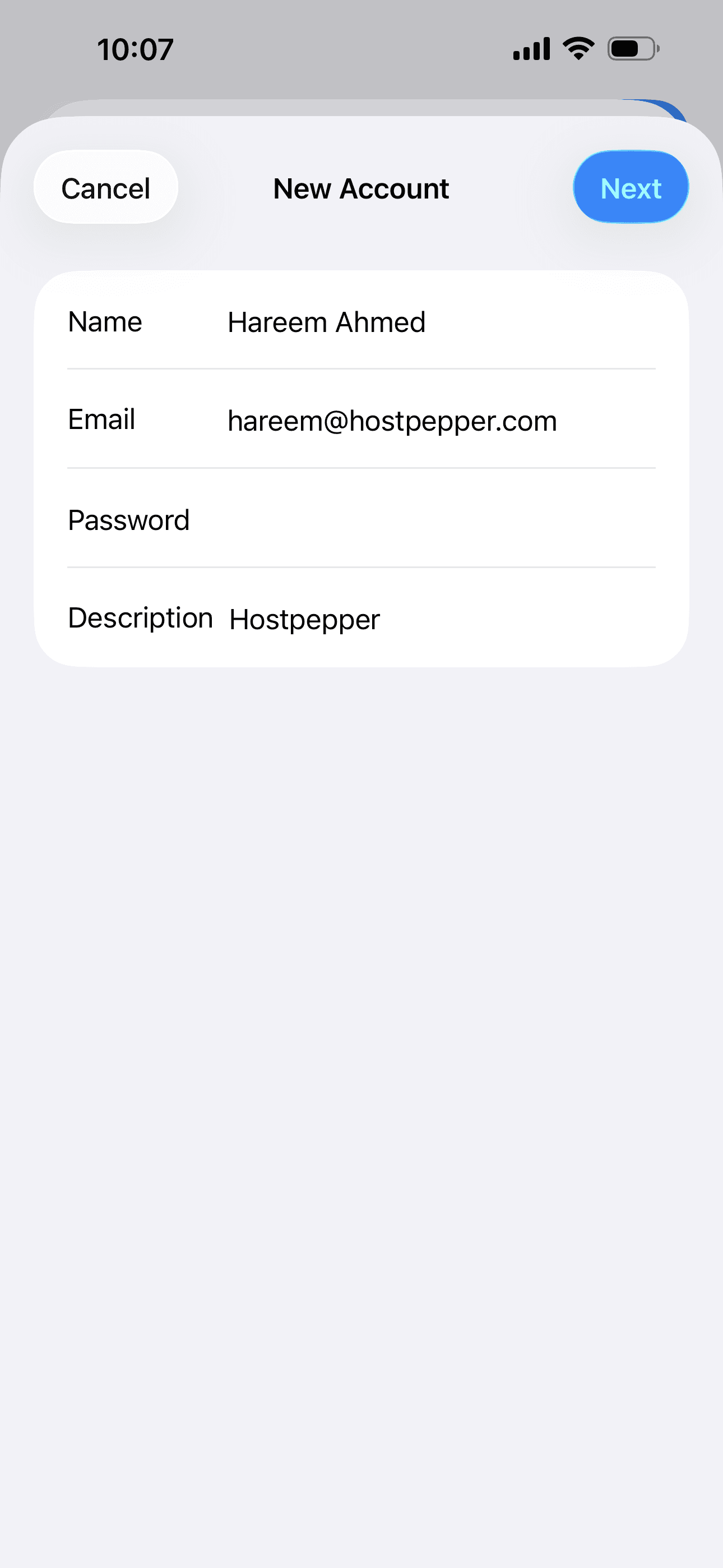
Enter your Name, Email, Password, and Description, then tap Next.
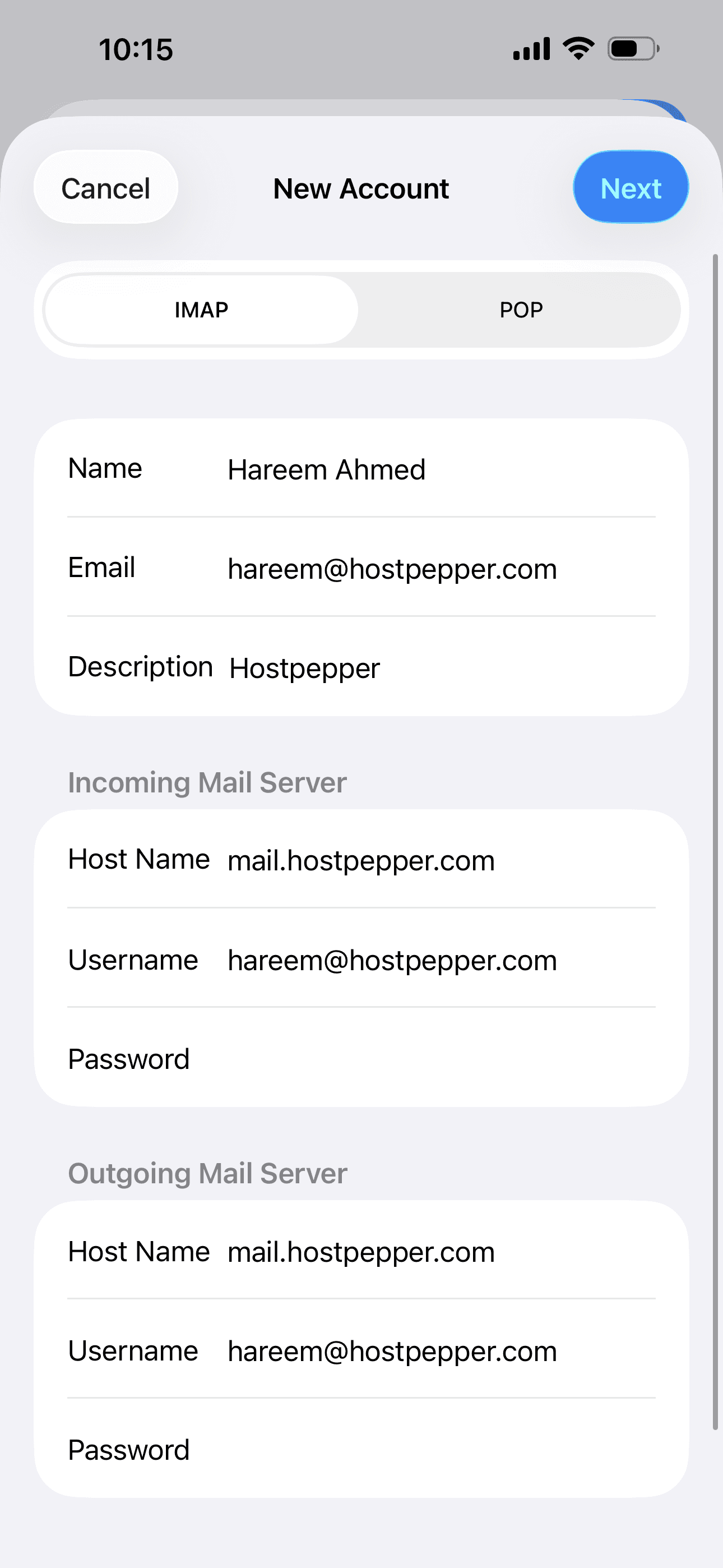
Select IMAP and set both incoming and outgoing host names to mail.hostpepper.com. Add your Email as your username for both incoming and outgoing Mail Server. Enter your Password for incoming and outgoing Mail Server.
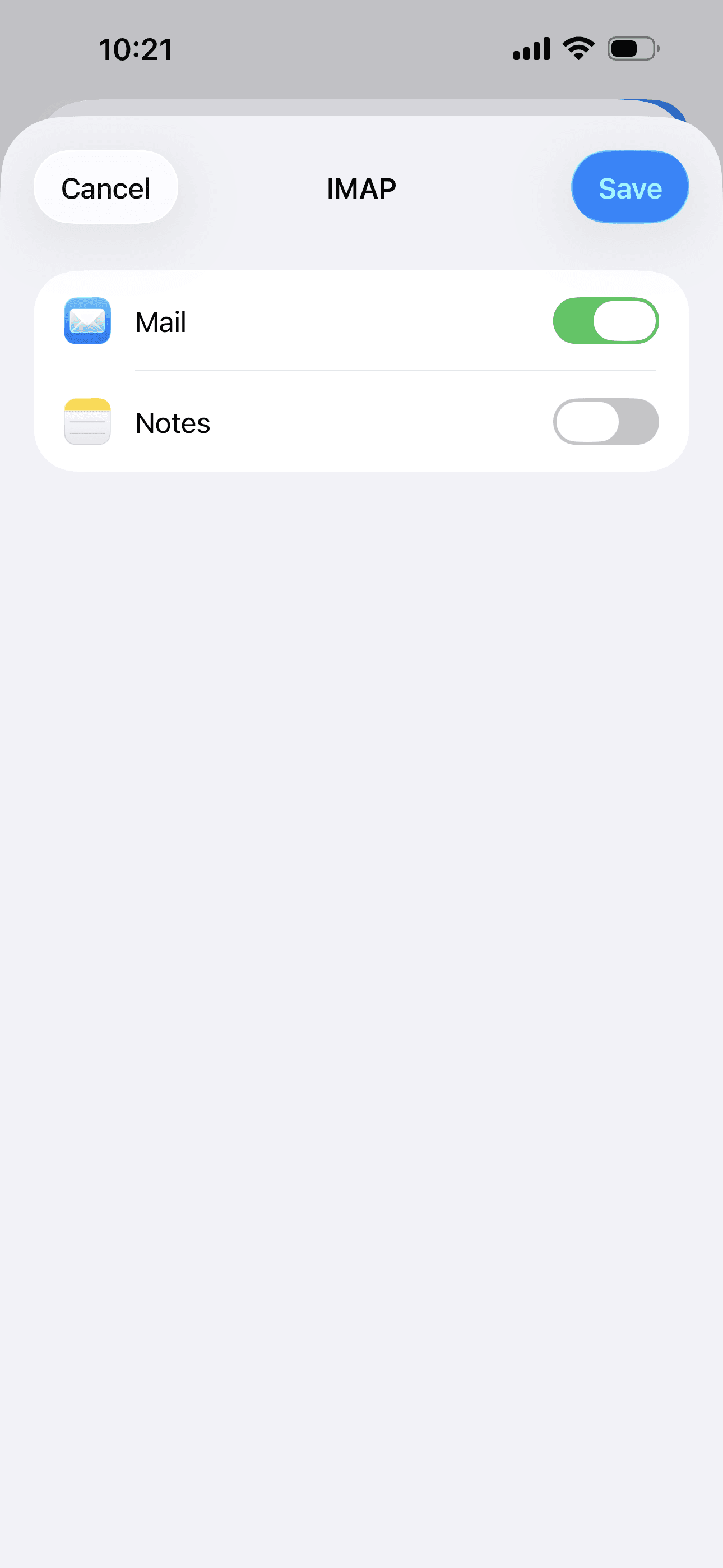
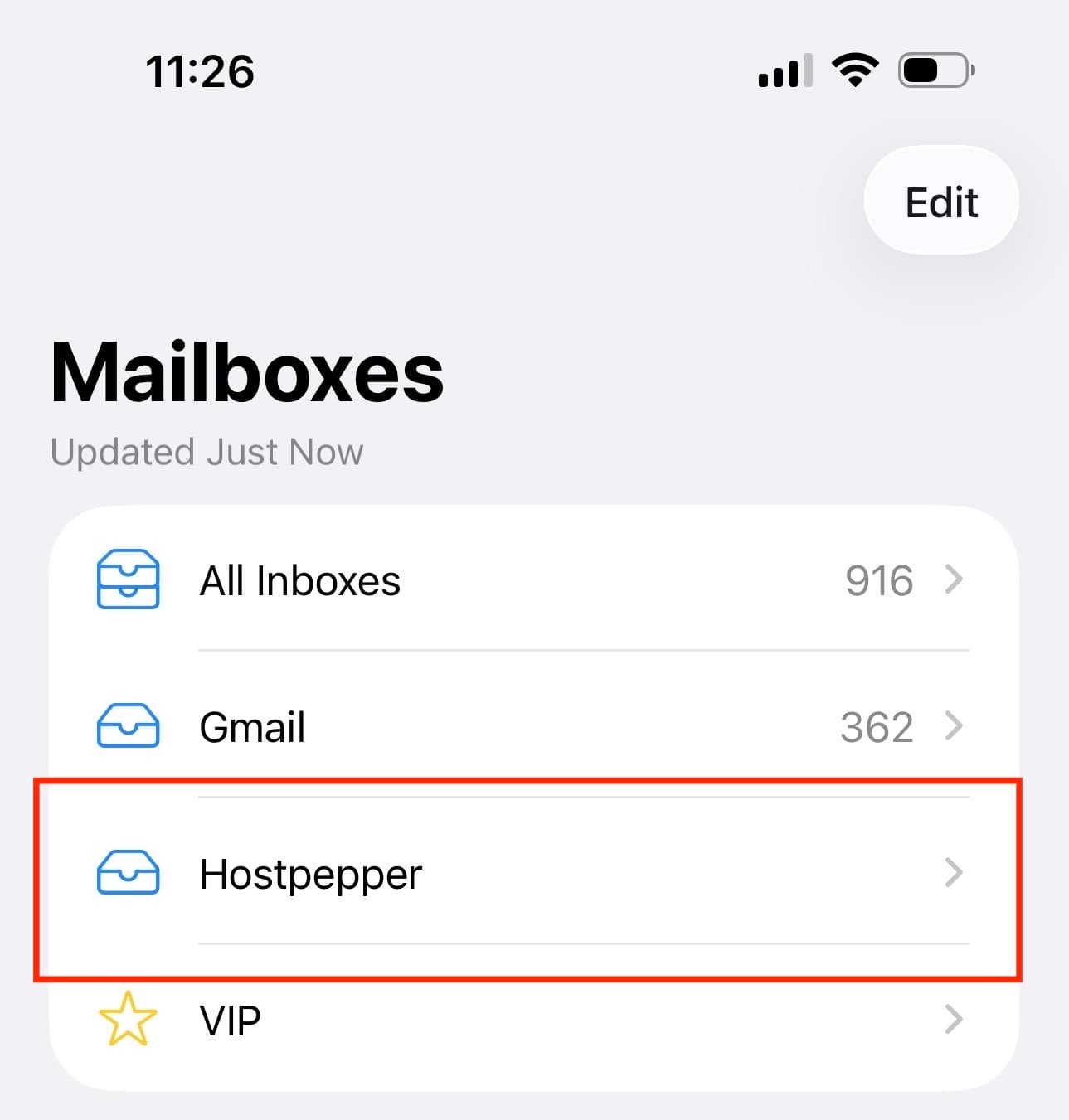
After verification, keep Mail enabled and tap Save.
Your HostPepper email account is now configured in iOS Mail.


SAFE AND SECURE PAYMENT