Once logged in, you will land on the “Organizations” page by default. If not, simply click “Organizations” from the left sidebar to access your list of organizations.
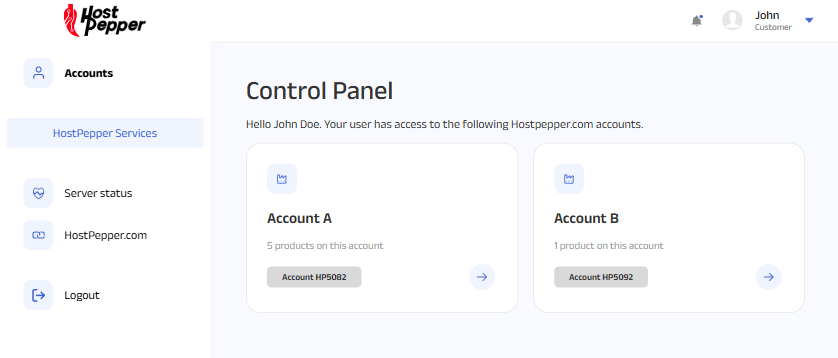
Click on the organization you want to manage. This will take you to the “Products” page. In the top-right corner, click the “Organization settings” button to open its settings.
You’ll be redirected to the organization's settings page, where you will see several sections including Organization details, General Information, Users, and Payment History.
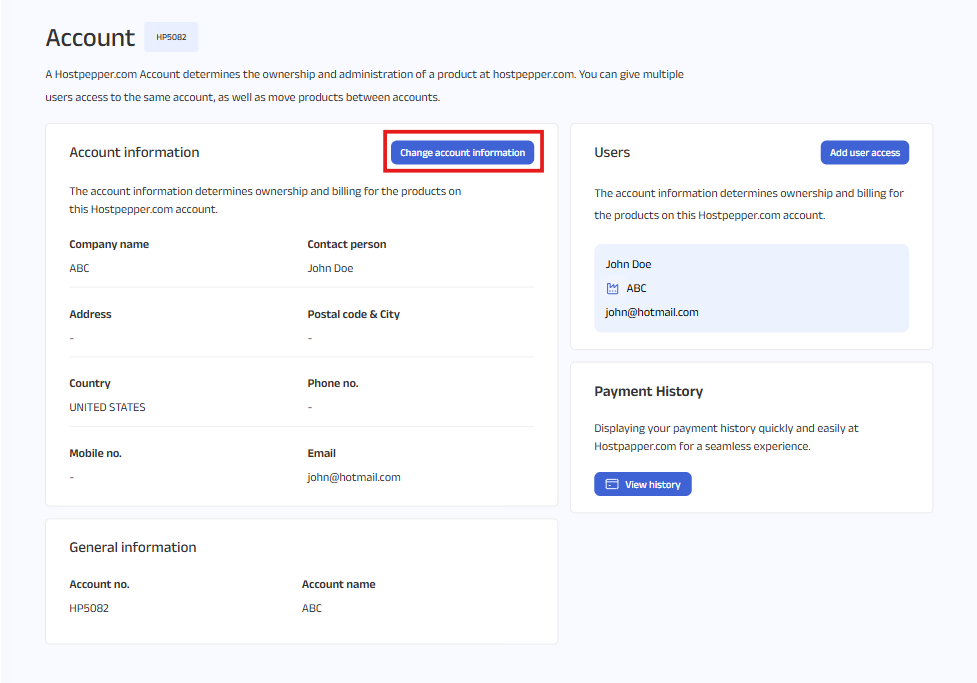
In the “Organization details” section, click “Change organization details.” A popup will appear showing the information you’ve previously provided.
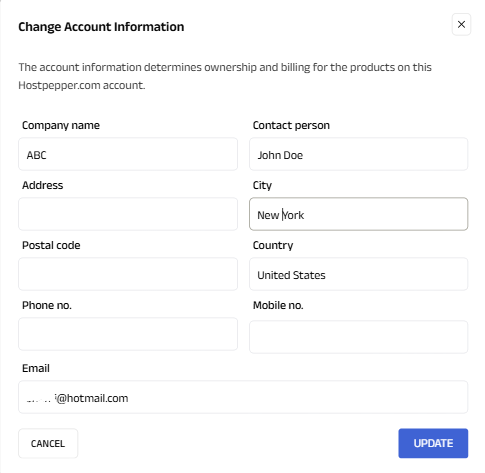
Make the necessary changes directly within the popup, then click the “Update” button in the bottom-right corner. Your organization details will be saved.


SAFE AND SECURE PAYMENT